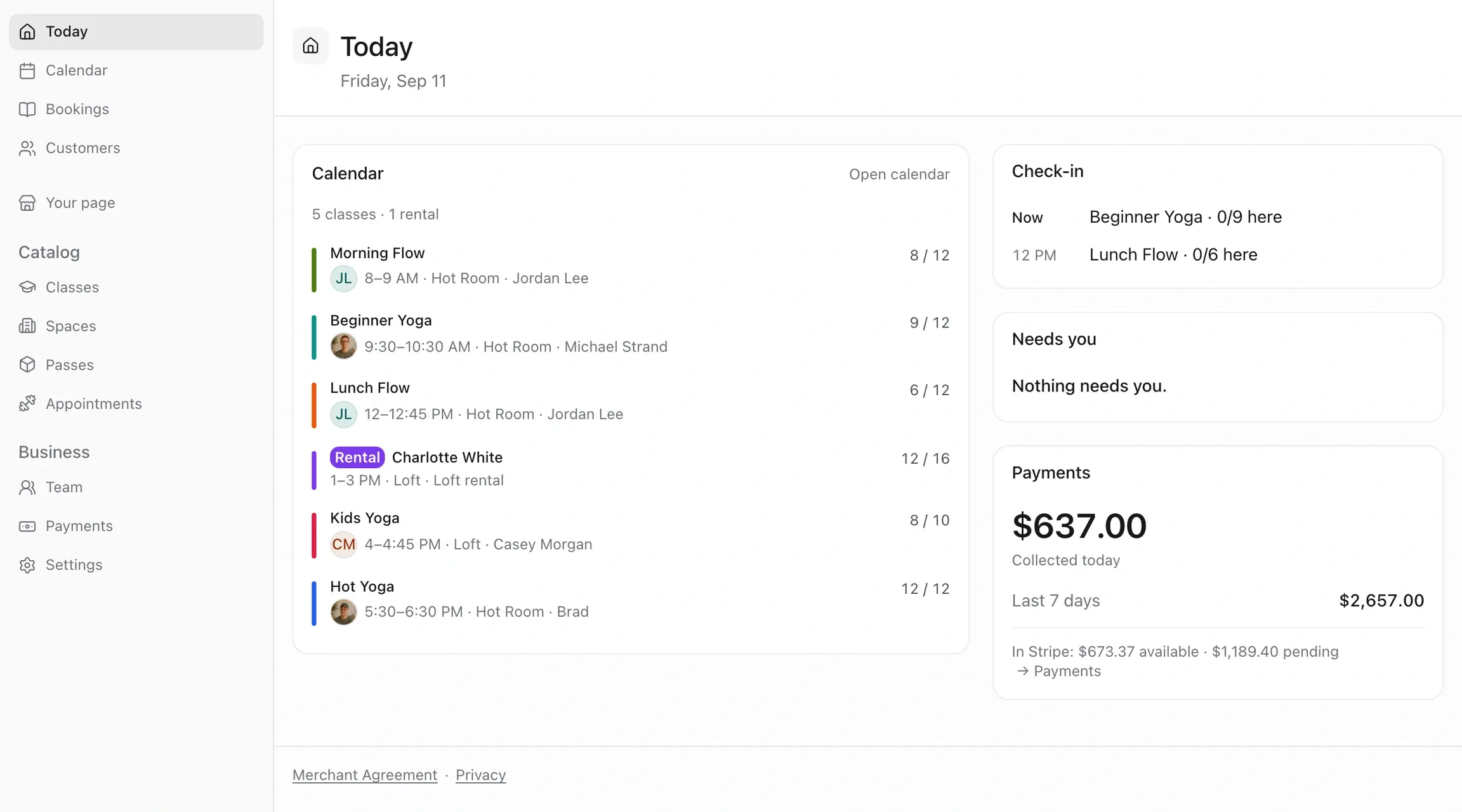
A page for everything you sell.
Every class, appointment and rental gets its own page: live availability, spots left, card or wallet checkout. No app and no account. Share the link anywhere, or embed it in your own website.

Classes, memberships, passes and space rentals for coaches, consultants, yoga studios and pottery workshops - sell your time, your space, or both on one calendar.
NewAsk the console in plain English, or connect Claude or ChatGPT
Get set up in minutes. Email-link sign-in. No password. Have a website? Paste it and your setup is drafted from it.
Group classes and one-on-one appointments, hourly and private rentals and memberships share it — a rental can never be sold over a class that could still fill.
Cards are charged the moment someone books, deposits collect their own balance, and every payment lands in your own Stripe account.
The console has an Ask panel. Type who’s coming today, add a class, send a pay link. It answers from your real records and links you to them. Anything that cancels, charges or publishes shows a summary and waits for your OK. Already use Claude or ChatGPT? Connect it once and ask from there.
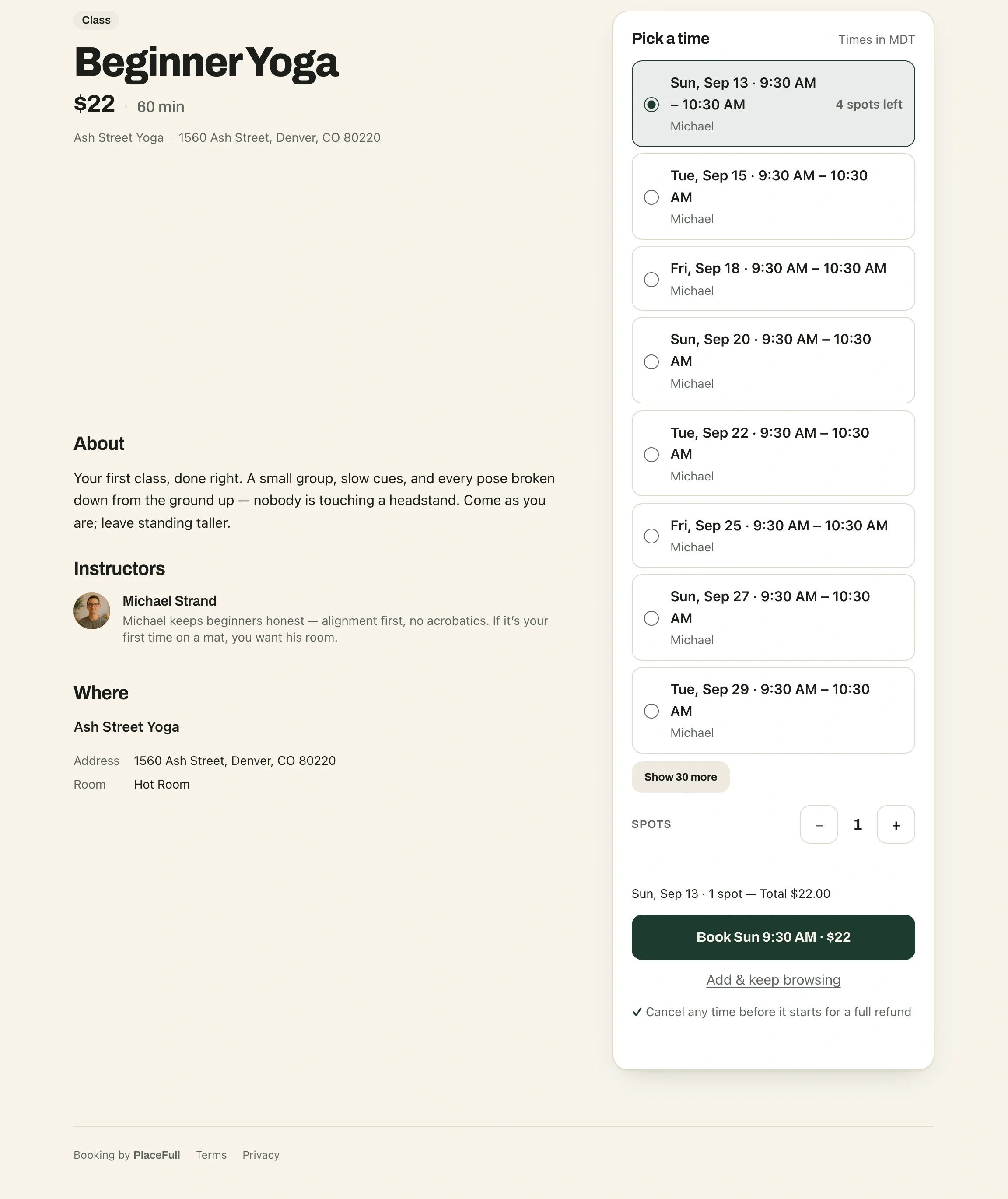
Classes, appointments and booked room rentals sit on one canvas, each in the room it actually uses. When two things collide — a room booked twice, one instructor in two places — the calendar outlines it and writes the reason on the chip.
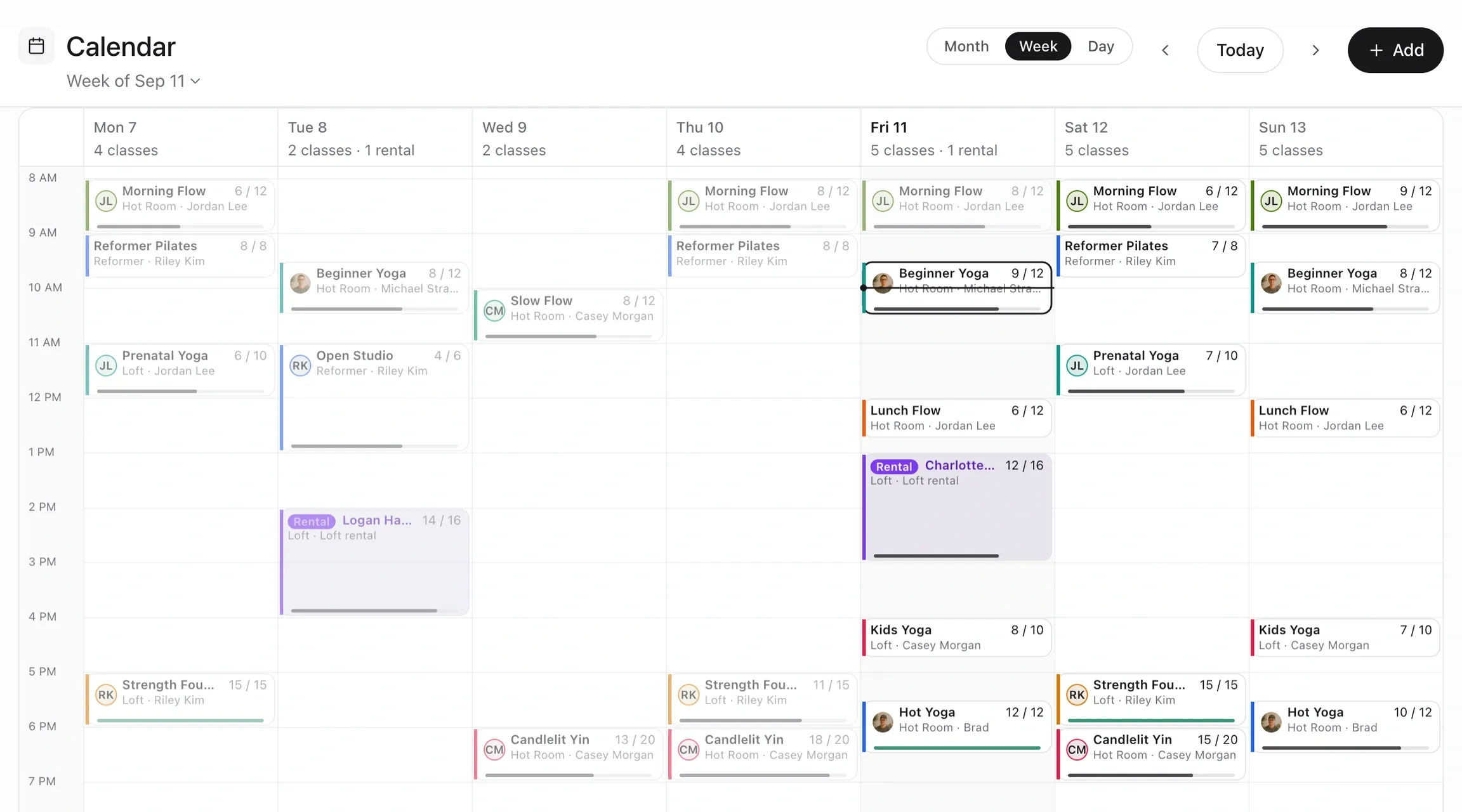
Every class, appointment and rental gets its own page: live availability, spots left, card or wallet checkout. No app and no account. Share the link anywhere, or embed it in your own website.
Every confirmation email carries one link: reschedule, cancel inside your window, add it to a calendar. No login and no password reset. The link is the key.
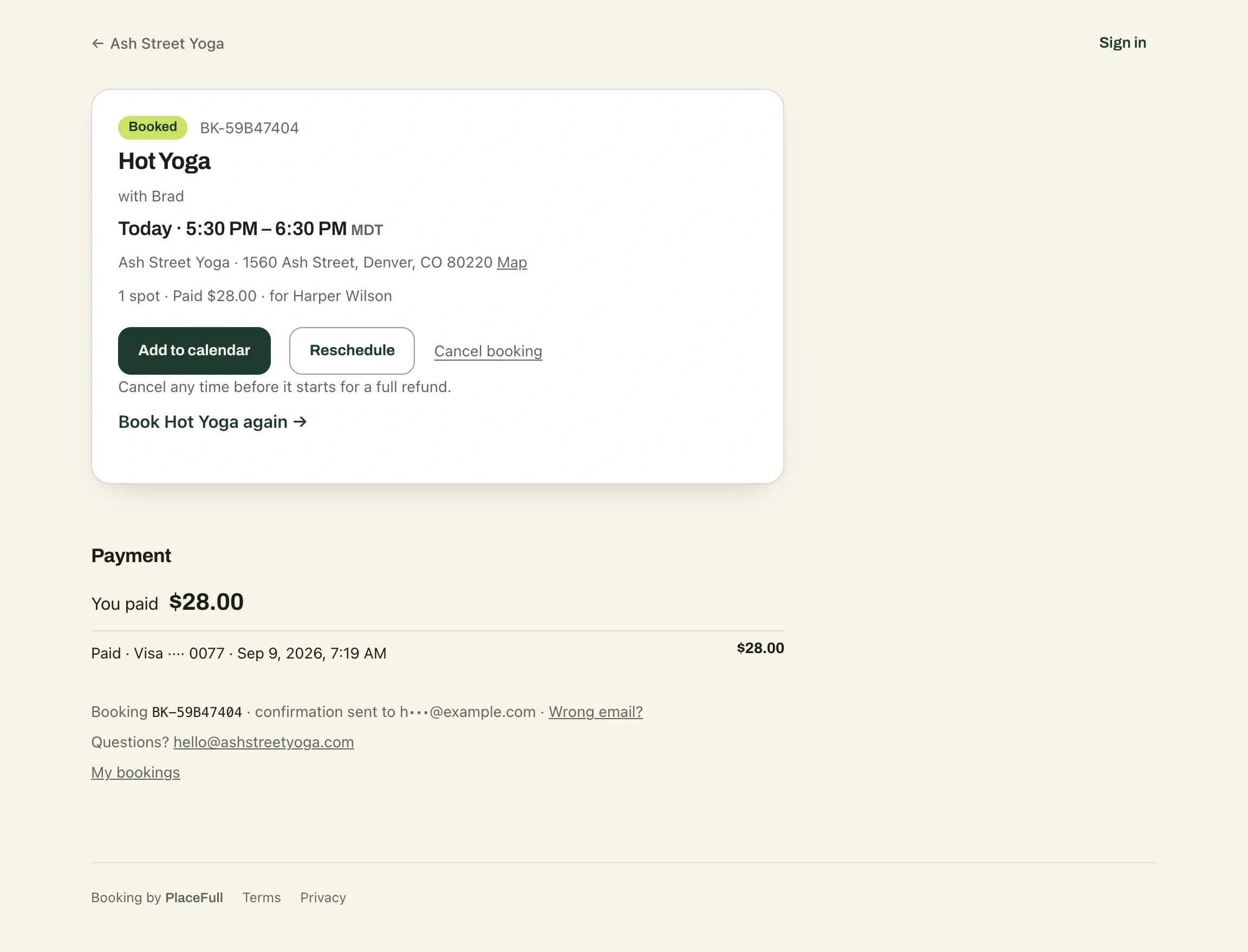
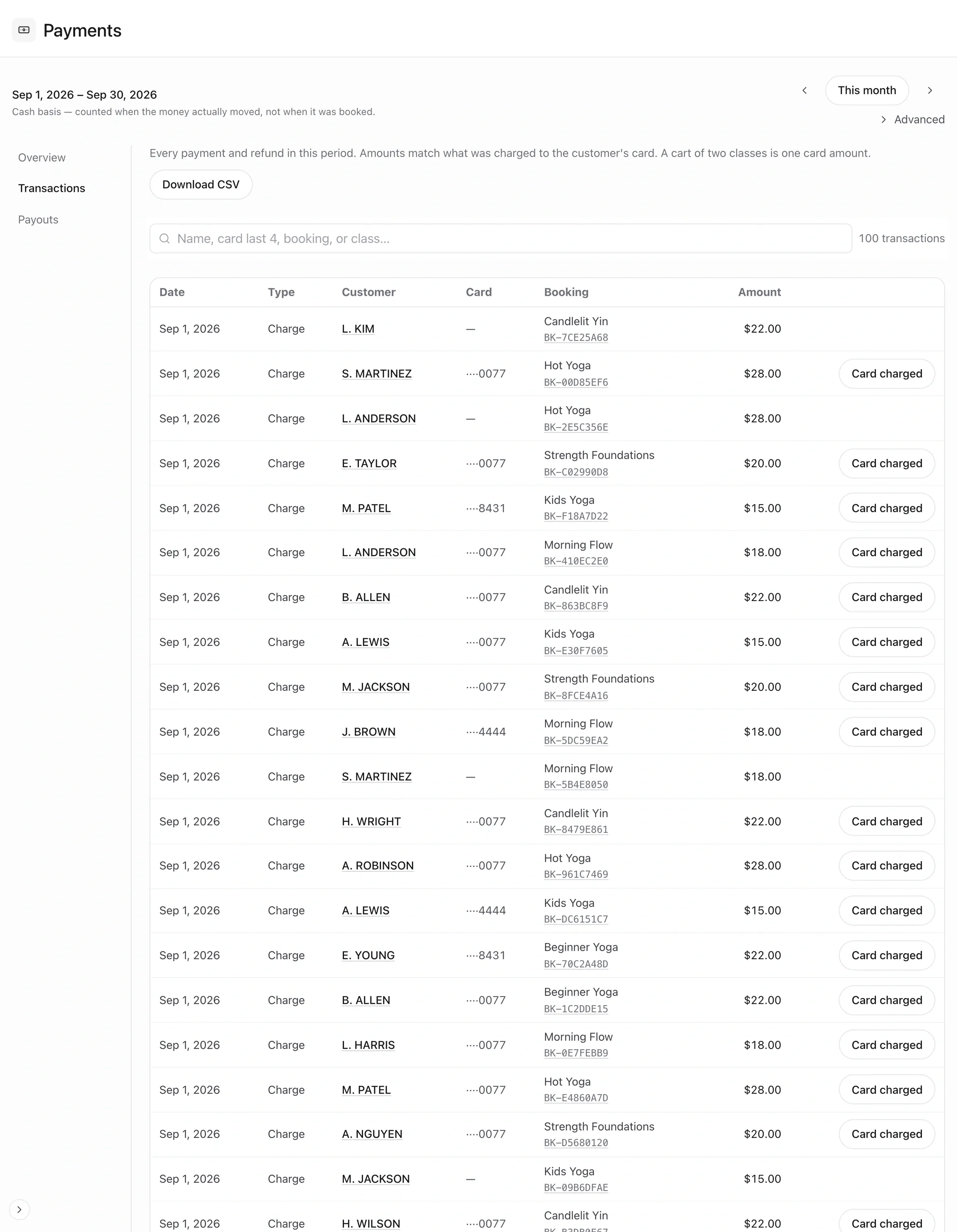
Cards are charged on your own Stripe account the moment someone books — you are the merchant, in your own name, and Stripe pays your bank on its schedule. Every charge, refund and payout sits on your Payments page on a cash basis, so it agrees with your bank statement. The only thing you pay us is a share of each booking, set for your studio and shown on that same page.
Classes & appointments
Group classes, one-on-one appointments and multi-week series, on repeating schedules or open hours.
Rentals
Rent rooms or gear by the hour, or let one group book the whole space.
Memberships & passes
Unlimited plans, class packs and member pricing. Card or cash.
Deposits & split pay
Take a deposit now. The balance is collected at check-in.
Waitlists
When a spot opens, it is held for the next person in line, who has a deadline to claim it.
Check-in & no-shows
Mark who showed up from the day view, or let check-in happen on its own at class time.
Booking emails
Confirmations, changes and day-of reminders, sent under your studio’s name. Replies land in your inbox.
Customer profiles
Every booking, pass, note and no-show in one place. CSV in, CSV out.
Your own website
Embed your schedule and booking pages in the site you already have.
Calendar feeds
Subscribe to your studio, a room or your own classes from Google or Apple Calendar.
Payments
What you collected, sales tax to remit, Stripe fees and payouts, on a cash basis. Export to CSV.
Multi-location
More than one site, one sign-in. Each location keeps its own calendar.
A small share of each booking is all we take. A quiet month costs you nothing.
Your customers book, pay and reschedule in the browser they already have open.
Stripe pays into your own account, in your own name. Your money never touches ours.
Works with Claude, ChatGPT and Cursor
If you already use Claude, ChatGPT or Cursor, connect it to your studio and ask in plain English — who’s coming today, add a class, fill a spot. Nothing to install. Pick yours for the steps.
In Claude, open Settings → Connectors → Add custom connector. Works in claude.ai and the Claude desktop app.
https://bookable-api.onrender.com/mcp
Claude opens a window and emails you a six-digit code. Enter it, pick your studio, click Allow. No API key. That’s the whole setup.
In ChatGPT, open Settings → Apps → Advanced settings and switch on developer mode. Then open Settings → Connectors → Create.
https://bookable-api.onrender.com/mcp?tools=compact
ChatGPT caps how many tools a connector can list, so this address serves the core set: bookings, customers, classes and money.
ChatGPT opens a window and emails you a six-digit code. Enter it, pick your studio, click Allow. No API key.
In the console, open Settings → API keys and create one. It is shown once, so copy it then.
https://bookable-api.onrender.com/mcp
In Cursor, open Settings → MCP and
add a server with this address and the header
Authorization: Bearer bk_…. The
setup guide has the config to paste.
Cursor loads the tools for that key’s studio, and nothing outside it.
Any MCP client works. Give it this address: a client that can open a sign-in page
gets OAuth from the first 401; one that cannot sends an
API key as a bearer instead. Claude Desktop can also run the server locally over
stdio with a key. The setup guide
covers each.
https://bookable-api.onrender.com/mcp
Then type things like
Your assistant gets exactly what your own login gets — your role’s permissions, your studio, and nothing past it. Anything that cancels, charges or publishes is marked destructive, so your assistant asks before it acts. In the console’s own chat, those actions are a confirm-first proposal you tap.
Building your own, or setting up a team? Full setup guide · OpenAPI · MCP server card · llms.txt